I. EXTRACTING EXPERIMENTAL RESULTS


  1. Download Comlabgames Log Browser to your desktop.


  1. The output file is automatically created when a moderator clicks on . The file name has always the following form:

-         start with the log, date, time when the session started and the name of the file. This enables moderator to know exactly when the same game was played on different occasions.


To open the file and view the results click on the Comlabgames Log Browser-Free icon  that is on your desktop and it was downloaded from the Comlabgames web page.

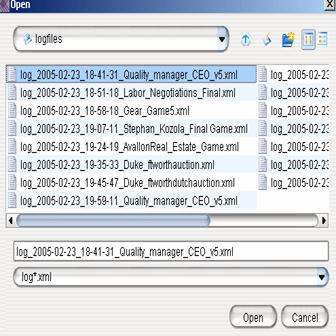
  1. Open the file that you want to look by clicking on  and selecting the appropriate file:

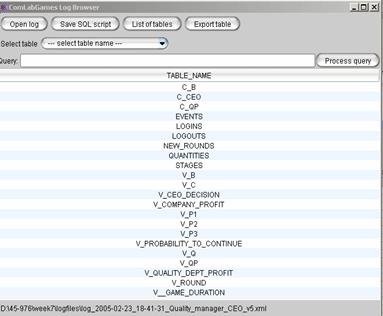
  1. Data is organized in tables. The log file consists of tables and once you open the output file the names of all the tables are automatically listed.

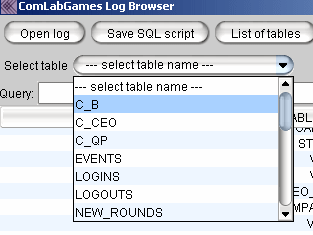
  1. Click on  to see the list of tables (i.e. variables, choices) that are created (see the in the figure above.)
  2.  allows you to select a choice/variable and list the data related to this specific table.


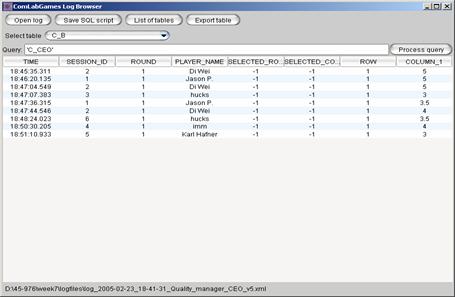
  1.   can be used to organize and display the data. SQL commands can be used to filter the data in certain way.


Each  created in the design window represents a separate table. All choices start with capital C_ and continue with the name of the choice created in the program. For example table  represents a choice  that you see on the design window when you open a game file.


  1.    Each variable created in the design window is also presented in a separate table. All variables start with capital V_ and continue with the name of the variable created in the program. For example table  represents a variable  that you see on the design window when you open a file with which you will run an experiment.
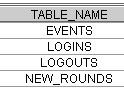
  2. g tables:     have designated name are always created as a part of output with LogBrowser.


·        Table “Events” has all the data recorded but the data are appended by rows not merged by columns. Events table lists all events during the experiment. 

·        “Logins” capture all the successful logins to the program by user name. Similarly for logouts.

·        New_rounds” contains the data about the new round.


  1. The amount of information from the experiment is determined by the moderator. It is up to the moderator to decide which kind of variables he/she wants to create (even if those variables are not displayed to subjects) in order to find them in the log file.
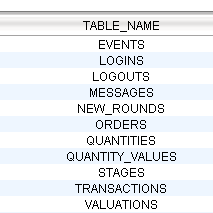
  2. If you run a market experiment (i.e. create an  in the design window then additional designated names:

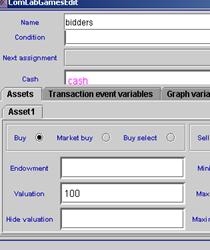
ORDERS records all orders, QUANTITIES records changes in cash, QUANTITY_VALUES records endowments, TRANSACTIONS record the data on transactions, VALUATONS are the values that you put under valuations in   like in the picture below. If for some reason you have not create a variable for valuation, and instead just wrote a function or a number under “Valuation” it will be recorded under VALUATIONS.


1.                                                                                    Selecting the data with

a.   enables presentation of the data for the selected table by clicking on the table name. Click on the drop down arrow next to  and all the names of the tables that are contained in the file are listed. Click on the name of the table to view it.

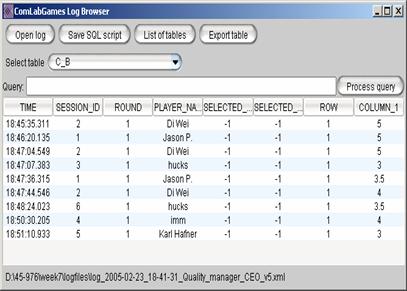
In our example the choice C_B was selected  from .


After selecting table C_B the following information about choice  appears automatically in the LogBrowser:


  1. Saving the selected table in ASCII format

First select a table:

Click on  to export the information about the table .


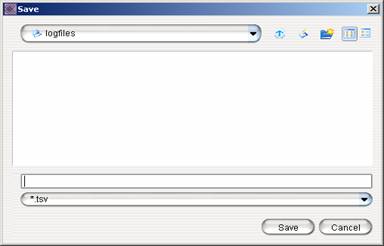
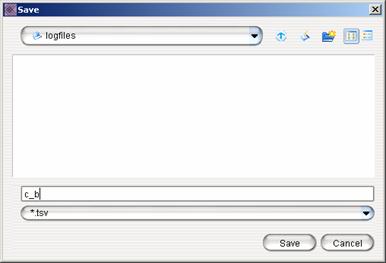
 The program prompts you to save a file with *tsv extension.


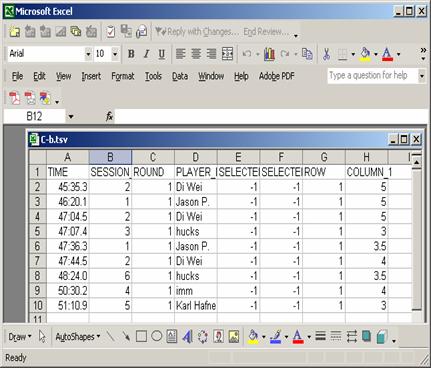
When you go to Excel file, open all files and this particular file will be called:

C_b.tsv. This files are “ASCII” files.


2. Opening a created ASCII log file with Excel

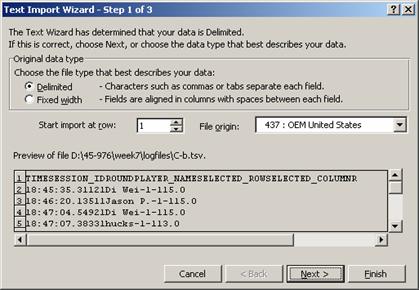
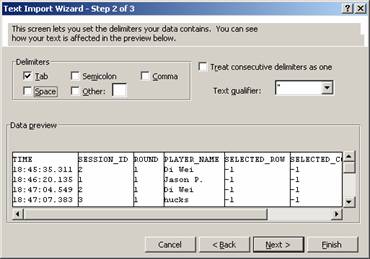
  1. Open file with EXCEL and the following message appears (leave “Delimted”):


  1. Click Next and the following windows appear:


  1. Leave “Tab” delimiters and click Next and then Finish and the table is imported into Excel: