|
The program window is your workspace. Take a moment to familiarize
yourself with the window, its menus, and the toolbars (shown below). The
toolbars are identical in function to many of the menu commands. Briefly
point the mouse at each button to display a tooltip identifying the button
and its function. More specific functions related to this program are
presented under Entering and Editing design
icons. |
|
|
|
|
|
|
|
|
|
|
||
|
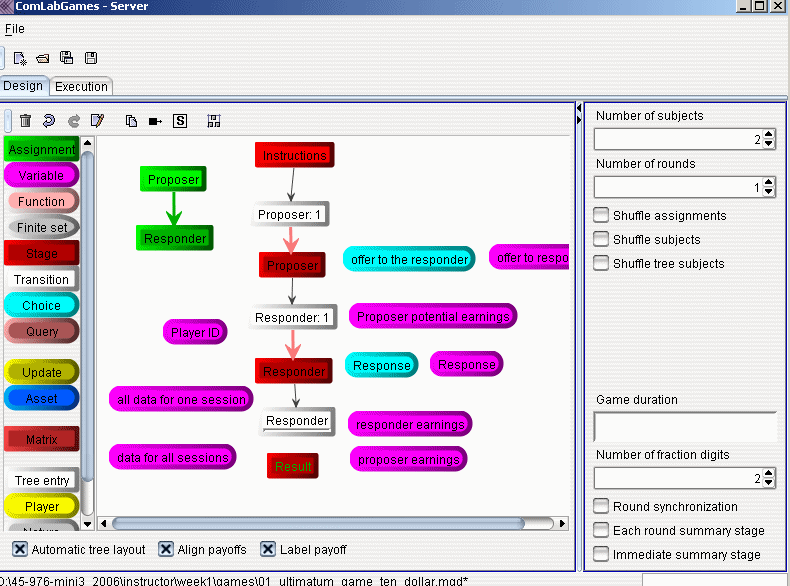
Drag and drop icons from the list of icons on the left
to create a game. Designing games, extensive form games, matrices,
combination of different |
||||||||||


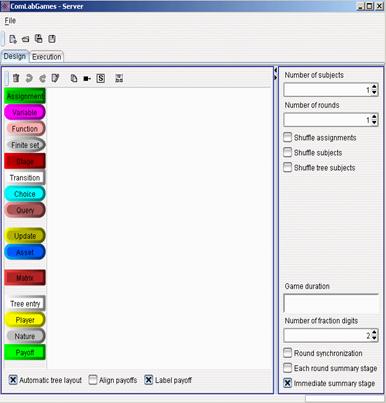
- The
basic Icons needed to design an auction
|
|
|
|
|
|
|
|
|
|
|
|
|
|


- Necessary
icons
Entering and Editing Design Icons
II.
BARGAINING
GAME
- Designing one period Ultimatum game
1. Adding 
|
a.
Drag and drop Two b.
Click on the c.
Double click on d.
e. The condition has to be a Boolean type (i.e. true or false). a.
Double click into |
· Write the condition directly or with the help of Assistant editor.
·
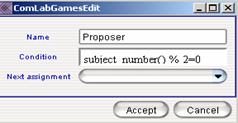
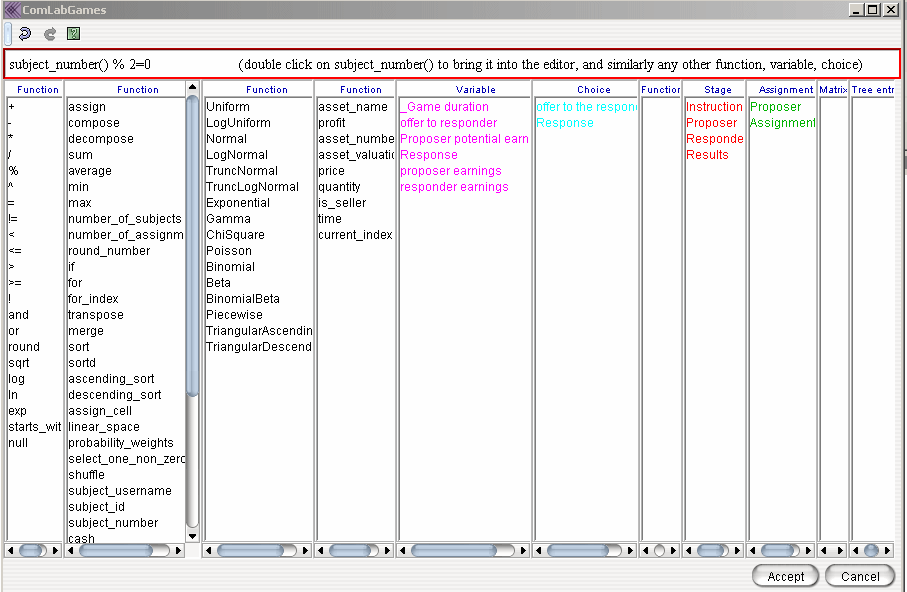
Condition: subject_number()%2=0 means that
remainder is zero (i.e. a subject with an even number is assigned a · Select Assignment 2 as a next assignment (i.e. if subject_number()%2=0 is false then check Assignment2) ·
The result is the link between ·
Double
click on ·
Condition for ·
The
program checks the condition from a starting assignment which is determined with
a lighter green color. By default the first assignment created has a lighter
color. If you delete that assignment or you want to start from another
assignment select that player and then click on |

 .
.
 to edit the condition. By default the window is empty: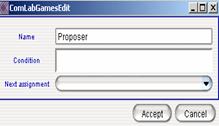
 ).
A subject is assigned a consecutive number after login to the game. The first
player to login is assigned number 0, the second player to login is assigned
number 1.
).
A subject is assigned a consecutive number after login to the game. The first
player to login is assigned number 0, the second player to login is assigned
number 1.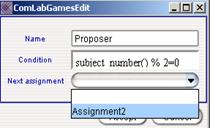
 :
:


 .
.2. Adding 
|
a.
Create ·
Drag and drop a ·
Rename it to ·
Open ·
Select ·
Type lower and upper bound for the offers:
|
b.
Create ·
Drag and
drop a ·
Rename
it to ·
Open ·
Select ·
For ·
Write
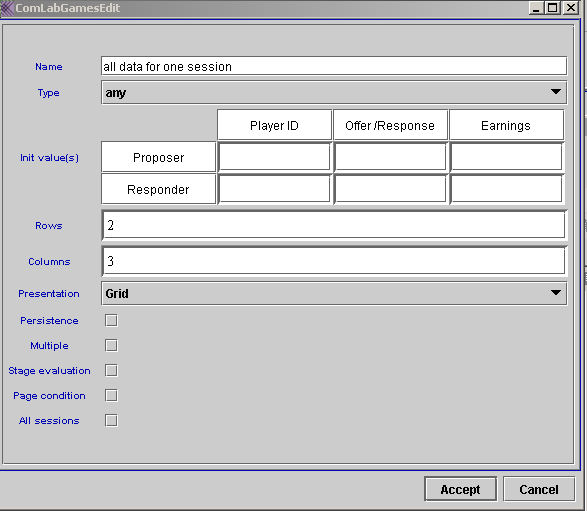
the default values for the ·
Select
|
|
|
|
 as
follows:
as
follows: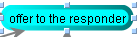 and
double clicking on the edge of the icon or just clicking on
and
double clicking on the edge of the icon or just clicking on 


 as follows:
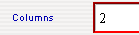
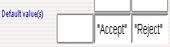
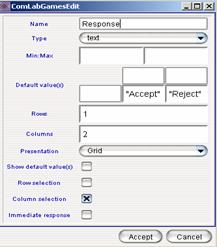
 .
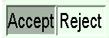
It means that a subject has to select one of the two columns (i.e. Accept or
Reject by clicking on a cell). Subject will see
.
It means that a subject has to select one of the two columns (i.e. Accept or
Reject by clicking on a cell). Subject will see 
2. Necessary  added.
|
a.
Create ·
Drag and drop a ·
Open ·
Select
Note: In order to show the
choice: b.
Create ·
Drag
and drop a ·
Open ·
Change
Note: In order to show the
choice: |
c.
Create ·
Select
d. Create ·
Select
|

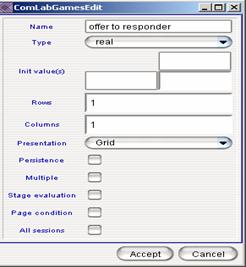

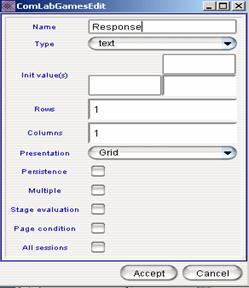


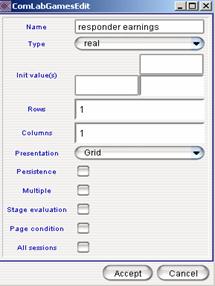

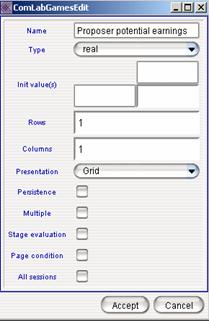
- added to enhance the presentation of results
|
a. Create ·
Change ·
Select
b. Create ·
Change
·
Change ·
Change
·
Labels
the columns: ·
Label the rows:
|
d.
Create ·
Select ·
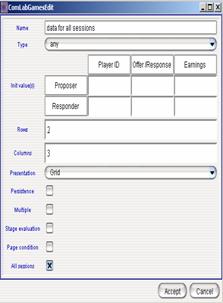
This data will only appear in the summary
stage if it is inserted there: This
stage is selected by clicking on ·
|
 to
collect the ID number for each subject.
to
collect the ID number for each subject.
 to
create a subject specific variable.
to
create a subject specific variable.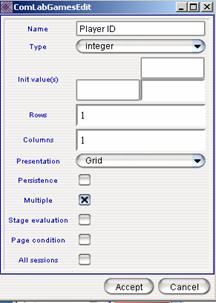


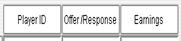
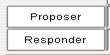
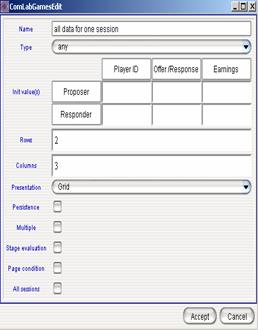

 .
. .
The font color is light green
.
The font color is light green .
.

2.
Add  and
and 
|
a.
Create ·
Open · Write instructions ·
To
insert the image, select ·
Select |
b.
Create ·
Select ·
The
alternative way to connect |
|
|
|
 stage
stage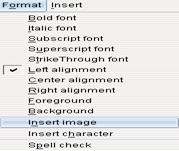
 .
If
.
If 
 ,
drag and drop
,
drag and drop  is
established.
is
established. 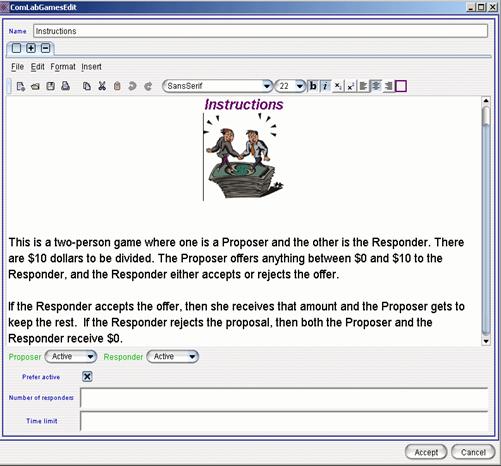
|
c.
Create ·
Open · Write a text · Insert an image ·
Insert
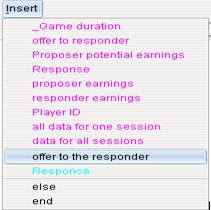
· The other option to Insert is to right click on the background and select “offer to the responder”. ·
Select
|
d.
Create
|
|
|
|


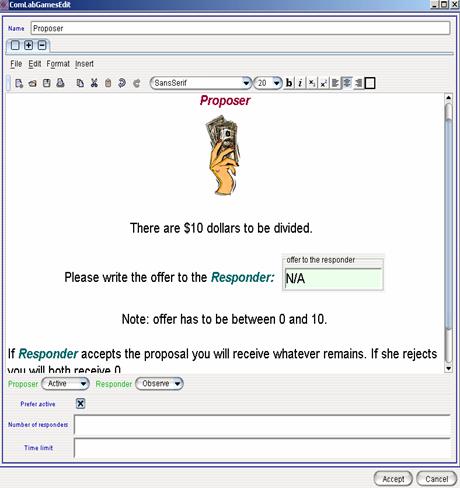
 means
that a proposer makes a decision.
means
that a proposer makes a decision. means
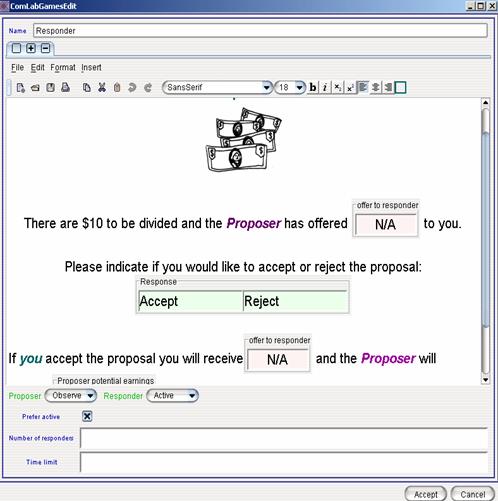
that responder will see exactly the same page as a proposer. However she will
not be able to make any decisions.
means
that responder will see exactly the same page as a proposer. However she will
not be able to make any decisions.
|
e.
Create
|
f.
Create
|
|
|
|
 stage
stage


5. Update Stage and in
|
Update Stage |
Update |
|
a. Update ·
Open
·
Select
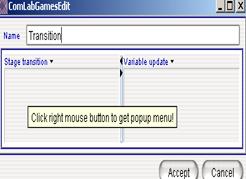
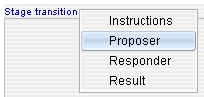
stage transition: Proposal by clicking on the arrow next to Stage transition
or right click mouse on the background.
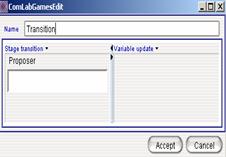
Proposer editor is created:
Leave Proposal editor empty. It
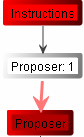
means that with probability 1 The
following link is created: |
|
|
b. Update ·
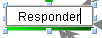
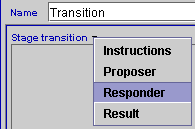
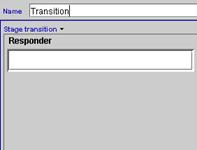
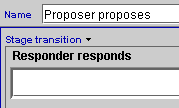
Open · Select stage transition: Responder by clicking on the arrow next to Stage transition or right click mouse on the background.
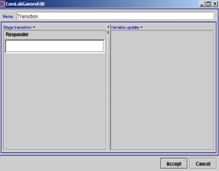
Responder editor is created:
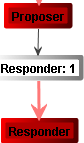
Leave Responder editor empty. It
means that with probability 1 The following link is created:
|
a.
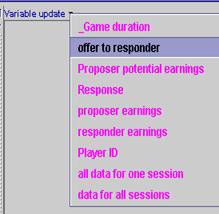
Update variable ·
Open
·
Select
variable
·
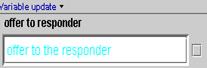
Write
the choice: offer to the responder in the
editor. To color the choice, select “offer to the responder” and click on “Ctrl+Shift+c”
or use Function editor by right mouse click inside the offer to responder
editor. This variable save the choice for presenting Responder with the decision that the proposer made. b.
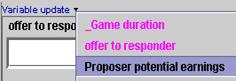
Update
variable ·
Open ·
Select
variable
·
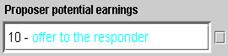
Write
the following expression in the
Note 10 was the maximum possible offer to the responder. |


|
Update Stage |
Update |
|
|
c.
No update for Note that
|
d.
Update variable ·
Open ·
Select
variable · Write the expression
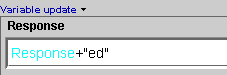
Response is either Accept or
Reject. Subject will see the following: e.
Update
variable ·
Write
the expression in the inserted
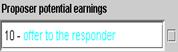
which means if the choice Response is accepted, then the proposer will receive 10 – offer to the responder (i.e. proposer potential earnings). If the offer is rejected, then the proposer will earn 0. ·
Select f.
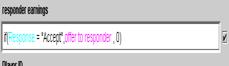
Update variable ·
Write
the expression in the inserted
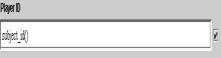
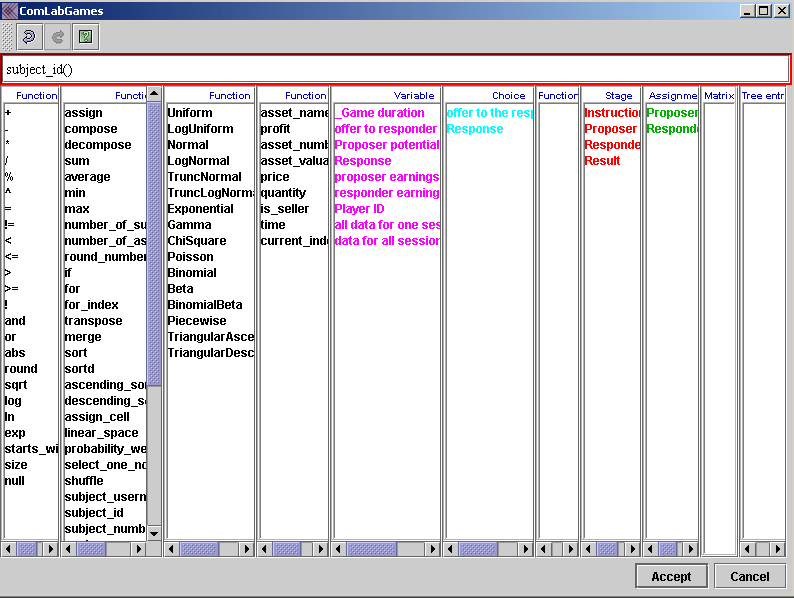
Select g. Update variable · Write the function subject_id() that can be used to identify each subject. Right mouse click brings the Function editor where all the functions are listed.
h. Update variable ·
Write
the expression in the inserted |
|
|
|
||
|
|
i.
Update variable ·
Write
the expression in the inserted |
|
|
In the |
||

 stage
follows the
stage
follows the 
 once
it is inserted into a stage.
once
it is inserted into a stage.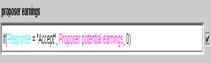





Right click on the One Period Ultimatum game to download
and use it
with
the Comlabgames program.
- Changes in designing infinite horizon
random assignment bargaining game
1. Additional added
|
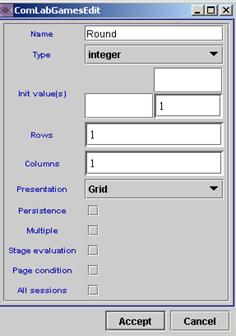
a. Create variable · Set initial value to 1:
·
The |
c.
Create variable
Note: no initial value is set. The update of the variable
is done in d.
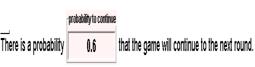
Create variable · Set initial value to 0.6.
It is a variable that is convenient to create. If you want
to change the probability to continue, change the initial value. The change
will be updated on all the places where · For example it is used in the instructions:
·
It is
used in the formulae in the e. All other variables: |
 to
count the number of rounds played in this game.
to
count the number of rounds played in this game.






2. Add or update and
|
a. Create a stage
·
If you
open
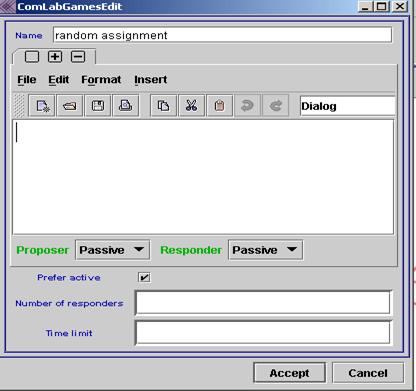
“Passive” is a default selection
in the program. It also means that |
b.Create ·
Insert
the stages: ·
Write
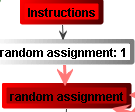
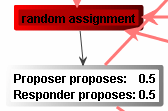
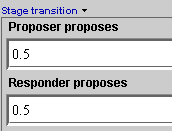
the probabilities by which the assignment of a proposer is determined. In our
case the probabilities are 0.5 for selecting the In the
|
|
|
|

 .
.
 with
the following properties:
with
the following properties:

|
Updates in |
Updates in |
|
c. Create ·
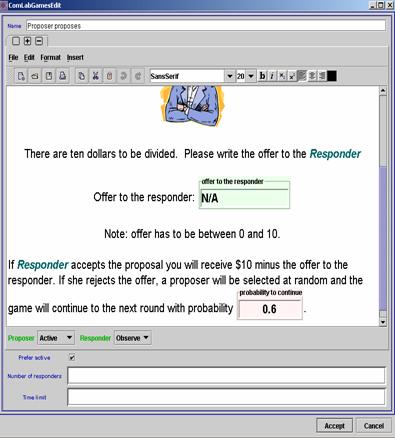
Open · Write the text to reflect random assignment and the probability to continue the game (see the window below). ·
Insert
the choice: ·
Insert variable
· Select “Active” for Proposer given that she makes an offer. · Select “Observe” for Responder. She will just see the exactly what Proposers sees but will not be able to make any decisions. It is up to the moderator to decide what Responder sees while waiting for the Proposer to make a move.
|
e.
Create ·
Open ·
Insert
·
Leave
the expression empty. It means that e.
In the ·
Update
the variable
·
Update
the variable
·
Update
the variable
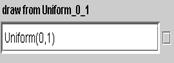
Uniform(0,1) means that a
outcome of a random draw from the uniform distribution with minimum 0 and
maximum 1 will be recorded in the variable |
|
|
|


|
Updates in |
Updates in |
|
f. Create ·
Open · Write the text appropriate text. ·
Insert ·
Insert
the choice: ·
Insert variable |
|

Right click on the Infinite horizon
random assignment bargaining game to download and use it
with
the Comlabgames program.