I.                   USING THE DESIGN WINDOW


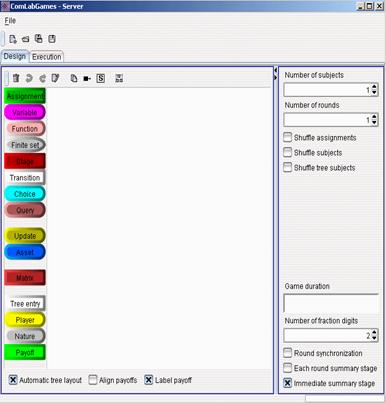
The program window is your workspace. Take a moment to familiarize yourself with the window, its menus, and the toolbars (shown below). The toolbars are identical in function to many of the menu commands. Briefly point the mouse at each button to display a tooltip identifying the button and its function. More specific functions related to this program are presented under Entering and Editing design icons.


Drag and drop icons from the list of icons on the left to create a game.


Designing games, extensive form games, matrices, combination of different


  1. The basic Icons needed to design an auction


  1. Necessary icons


  1.  
  1.  


Entering and Editing Design Icons


II.                PRIVATE VALUE AUCTIONS


A. First price sealed bid auction

1.      Creating private valuation for each player by defining a .


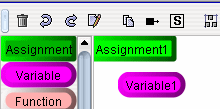
  1. Drag and drop a  icon into the display window. Automatically  appears in the display window. Note that  appears with the first icon appearing on the design window. If you already dragged another icon into a design window then a new  will not be added.

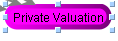
b. Rename the  by double clicking on the icon.  will appear. Just change the name. For example in our example we changed the name to: .


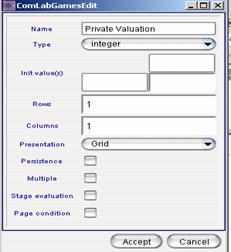
  1. Open  by clicking on the icon to select it and then double clicking at the edge of variable (the shaded area) or just click on .  
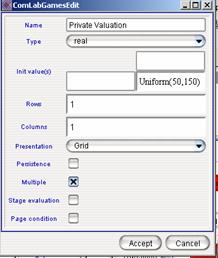
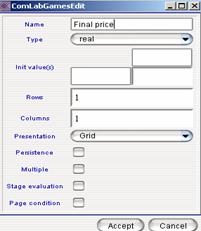
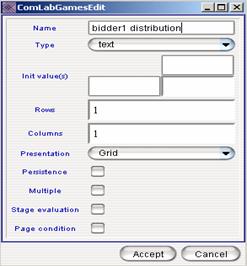
  2. The variable editor opens:


A variable with multiple tagged contains separate data space for each player. This implies multiple evaluations of a formula for such a variable in output variables. An evaluation of choice and multiple variables in the formula matters a same positioned data only.

Let's have a choice Offer where three players input 23, 11, 17. If the choice is assigned to a multiple variable, three evaluations (assignments) of the choice are performed. As result, each of the input is assigned to according part of the multiple variable. On contrary, an assignment to an ordinary variable would perform the evaluation only once and result would be [23; 11; 17].


  1. Change  if the real numbers should be created, otherwise leave .
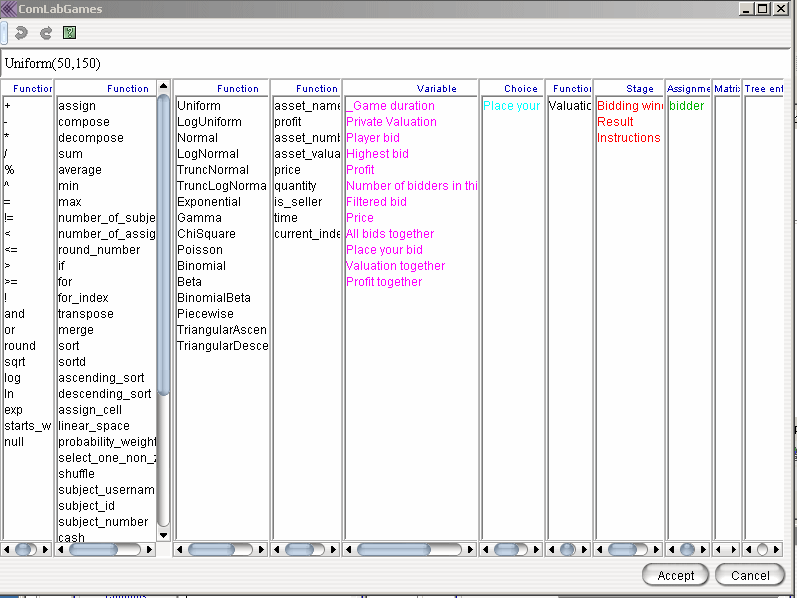
  2. Select initial value. In the example Uniform distribution with minimum 50 and maximum 150 was selected. All the functions can be accessed by “right mouse click” and the Function editor appear. Select the appropriate function by double clicking on the function or just write the function in the editor.


  1. Select to draw a different number for each subject. If Multiple is not selected then each subject will get the SAME draw.
  2. Withoption program will associate the right value with the right subject which is needed in presentation of the data at the end of an experiment. 


1.      Creating a  for subjects to submit a bid.


  1. Drag and drop  into a design window.
  2. Double click on the  to change the name .


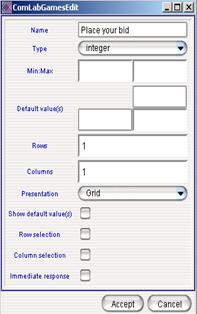
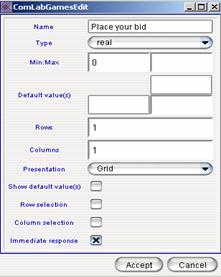
  1. Double click on the edge of the choice  or just use  to open the  editor.
  2. In the auctions subjects will submit the bids and it is up to the moderator to decide about the type.


  1. Change  to the desired units that subject should enter the bids (i.e. real, integer). In the figure below  was selected.
  2.   Select the lower and upper bound for the choices. In our case only the lower bound of zero  was selected:
  3. Select  so subjects do not need to click return after they typed a number. If  is not selected then subjects have to click on “Continue” at the bottom of the page to submit their decision.


2.      Determining player types with

  1. Double click on the  to change the name to .
  2. Note that we do not need to open  editor  given that we are dealing with only one type of players (i.e. bidders).


3.      Determining number of subjects participating in the auction


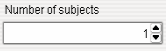
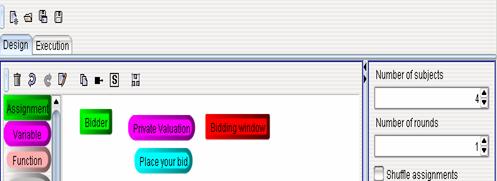
  1. On the top right side of the design window  is set to one by default. Change the number to the number of subjects you would like to participate in an auction by typing a number or just by using arrows. 


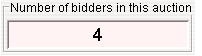
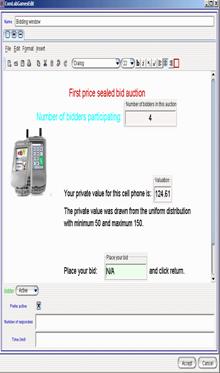
  1. In the figure below the number of subjects that will participate in one auction is 4. This does not mean that only four subjects can login to the game. It means that there will be multiple parallel auctions running with 4 subjects participating in a particular auction.


4.      Creating an auction with


  1. Drag and drop a  into a design window.
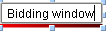
  2. Double click on the  to change the name .
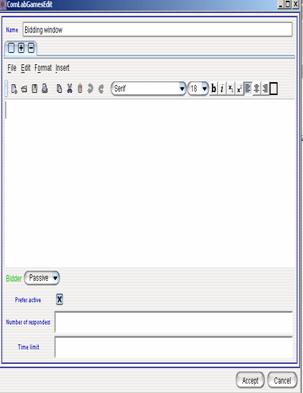
  1. Double click on the edge of the stage  or just use  to open the  editor.
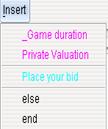
  2. Write the appropriate text and right click on the mouse to insert the and  in the stage or just use
  3. All the variables that are created are listed in pink color and all the choices created are listed in turquoise color. Select a variable or a choice that you want to insert and it will appear in the stage window.


  1. The information that you present in a  are the information that subject will see during the game (See the figure on the right side).
  2. In order for subjects to make decisions,   has to be changed to .  also means that a subjects sees all the variable values.
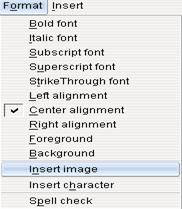
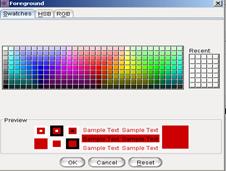
  3. To change the color of the text, click on , and select the appropriate color by clicking on the desired cell:
  1. To insert a picture, click on  and select “Insert image”.

  1. To insert math, Greek character, click on and select .
  2. Once you have written a text, you can use spell check by selecting  and .
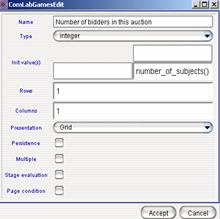
  3. One more variable:  was created and inserted into the text. When this variable was inserted the number of subjects participating in one auction appears in the window. If we change  in the design window, this created variable is automatically updated.

.

  1. The function:”number_of_subjects()” that can be typed or selected from the “Function Editor” as an initial value (note to access Function editor right mouse click) by double clicking on the number_of_subjects().


5.      Writing instructions with

  1. Drag and drop a new  into design window.
  2. Rename the stage to .
  3. Open by double clicking on the edge of the icon or by clicking on  and start writing the instructions (see the figure below)
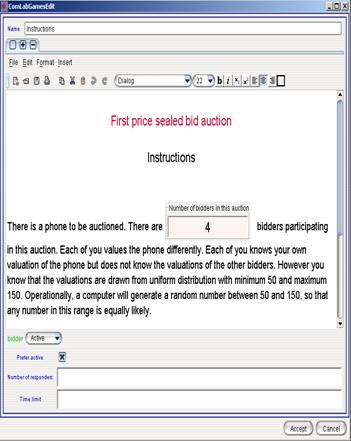
  4. Make sure that  in order for subjects to make a decision when they want to proceed to the next stage by clicking on “Continue”.


7. Creating result page with


  1. Drag and drop a new  into design window.
  2. Rename the stage to .
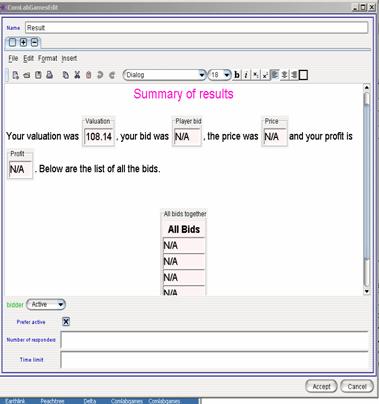
  3. Open by double clicking on the edge of the icon or by clicking on  and start writing the results (see the figure below)
  4. Make sure that  in order for subjects to see the results.

e.  Note that some of the variables which were obtained after the auction was closed were not yet discussed: like , ,  and . See the discussion on Updating  and collecting the data from the experiment with.


6.      Updating  and collecting the data from the experiment with .


  1. First select a   (for example   ) that includes has information which needs to be updated for later use ( and )


  1. Then drag and drop the   icon into the display window. The stage and transition is automatically connected with an arrow:  . If you happen not to select a   before dragging and dropping the   you will see the following situation in a display window: . Put the mouse on the stage. A blue rectangle: appears in the middle of a stage. Put your mouse on the blue rectangle, click with the mouse on  and drag it to  . The effect is the same: .


  1. If you want to remove a connection between a  and a  , click on the arrow to select it:   and erase it by clicking on .


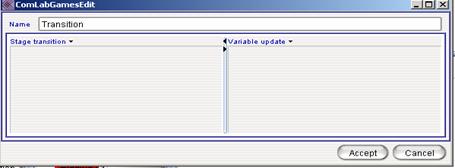
  1. Open   and the following  editor is displayed:


The editor is divided into two parts: stage transition which will be discussed in 8., and Variable update.


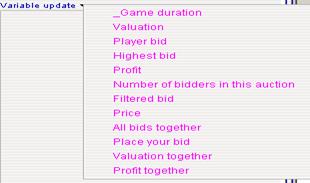
  1. Click on arrow next to  . The list of all  variables that were created are listed in the following way: 

If a new variable is added on a display window the  will be updated automatically.


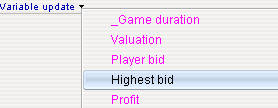
  1. Select the variable that you want to update like in the example:

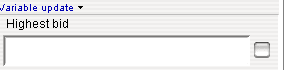
The editor that allows you the expression to write or to use “Function editor (right mouse click)” with all the functions appears:


  1. Write the expression in the line editor like in the example:

This expression sort all the bid from the choice  (i.e. it treats all the bids as a vector with the dimension 1x (number of subjects)) in the descending order and picks the first element in a column.

  1. next to the  expression means that the calculations for that variable will be used in the follow up calculations in the same transition. If  is selected it means that the update is not done within the transition.
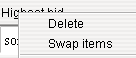
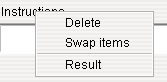
  2. To swap the order of variables, right click on a variable that you want to swap the order and select swap items:


7.      Determining the path of the experiment with 

  1. Select the beginning  by selecting that stage (for example:  and click on . The  changes to a lighter color: . Lighter color of a stage shows where the game begins. You can select any stage at which the game should start. This is useful when you test the game and you do not want to go over all the stages.
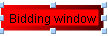
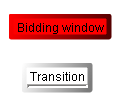
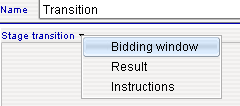
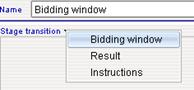
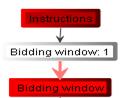
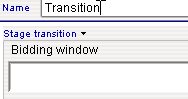
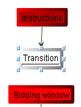
  2. To each  we link a  to determine the path from a  to any other stage or back to the same stage. Open a  and select a stage that the game should proceed to by selecting a stage from a drop down menu: . In this example Bidding window stage is selected to follow   stage. The editor shows the selected stage:  . The empty line means that the stage will be the next stage to be played with probability 1. After the stage is selected the display window adds a red arrow between the  and  stage:
 

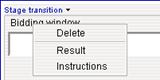
  1. To remove the path from one stage to the next stage edit the , right click on the stage name that you want to delete and click delete: . The red arrow disappears between these two stages: .
 

  1. Stage transition to the Results does not need to be defined if the Result stage is defined as a summary stage. To do that select the result stage: and click on . Note the color of the font on the result stage is yellow to indicate the summary stage:


  1. If more then one stage is listed in the  window and the order of the stages should be reversed, right click on the name of the stage and use swap command:


8.      Variables update specific to the first price sealed bid auction.


  1. Determining the highest/lowest bid

1. Create a variable (in our example it was named) that has to have the following characteristics:
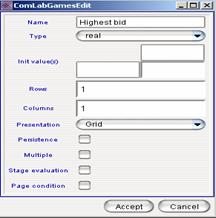
  • Type: real (i.e. it can be Integer if the choice was defined as integer)
  • No initial value
  • Dimension: 1x1 (i.e. number of rows:1 and number of columns: 1)
  • Do not select Multiple. It is a scalar.

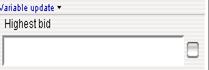
1.Open the  that follows the bidding window and insert the Highest bid variable from the drop down menu:


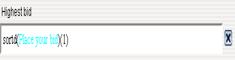
2.                              Write the following expression for the Highest bid update:

Use sortd()(1) for descending ordering and (1) for selecting the first element from the column vector. Write the variable or the choice that you want to sort. To color the choice select the text that you want to color and use “Shift+Ctrl+c” or just access the “Function editor (right mouse click)” and double click on the appropriate choice.  In our example  was selected which will usually be the case in the auctions.  Given that the choice is a column vector we do not need to use any other command to assemble the choices together.


3.                              sort() function is used for ascending order if the lowest bid has to be selected.

5                                Make sure to select  next to the variable editor in order to use the calculation in the next step within the same .

  1. Selecting one bid at random when there is a tie


1.                                                          Create a variable (in our example it was named: that has the following characteristics:
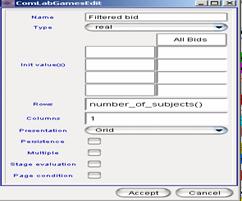
  • Type is the same as the choice and the (real in our case)
  • Initial values are empty
  • Number of rows is determined by number of subjects. The function is called: number_of_subjects(). Access this function through the “Assistant editor”. All the bids have to be placed in a vector.

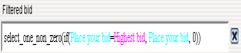
2.                                                          In the window select Filtered bid from the drop down menu and then write the following expression:

  • Select_one_non_zero() function will select one value at random that is not zero.
  • The statement: if(Place your bid=Highest bid, Place your bid, 0) means that if  the bid subject made is equal to the highest bid, then the variable Filtered bid is filled with the value of the choice a subject made, otherwise it is zero. The program always puts the first subject to login in the first row, the next one in the second row,…

Select_one_non_zero (if(Place your bid=Highest bid, Place your bid, 0)) selects one value to be a winning bid and all the other values become zero.

Note that Highest bid is the variable that was calculated in the previous step. Also if you do not use Assistant editor and you just type Highest bid, you have to chance the color to pink by selecting the text and clicking “shift+Ctrl+v” at the same time.


  1. Determining a profit.


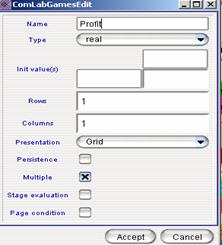
1.                                                                              Create a variable with the following characteristics.

·        Type real or Integer (up to the moderator)

·        No initial value

·        Dimensions: 1x1

·        Select so each subject receives information about her own profit.

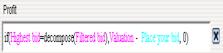
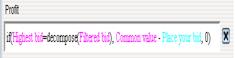
2.                                                                              In the window,  insert Profit from the drop down menu and then write the following expression:

·        Remember that Filtered bid is a vector dimensions kx1 where k is number of subjects. In order to compare the Highest bid  with the Filtered bid, Filtered bid has to be decomposed into a scalar and properly assigned to each player. Decompose() function has this role.

·        So if Highest bid is equal to decomposed Filtered bid, then the profit is equal to subject’s valuation minus his bid (i.e. ValuationPlace your bid), otherwise it is zero.


  1. Other variables that were used for presentation in the Result window.


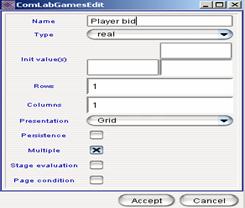
1.                                                                                   Information about subject’s own bid

·        Create a variable( i.e. we called it ) with the following characteristics:
The main thing is to select  so each subject received the information about her own bid.

·        In the  window, insert Player bid from the drop down menu and then write the following expression:

Note: In order to use the choice information in the next stage, we have to define it as a variable.


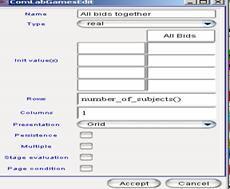
2.                                                                                   Information about all bids submitted together.

·        Create a variable (i.e. we called it  with the following characteristics:
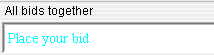
number of rows has dimension determined by the function number_of_subjects()

·        In the window,  insert All bids together from the drop down menu and then write the following expression:

Note the only difference between  and  is that  is not a multiple variable and the dimensions correspond to the number of players participating in an auction, and  is a multiple variable.


Right click on the example of the first price sealed bid auction to download and use

 it with the Comlabgames program.


B. What is the difference in the program between the first price and the second price auction?


Below is the  window that follows the and it shows all the updated variables for the second price sealed bid auction:


1.        Second highest bid created


2.        Profit calculation changed


Text Box:

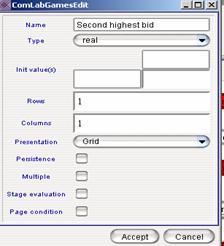
  1. Determining a variable .


Variable has the following characteristics:

In the transition window the following expression has to be defined for Second highest bid:

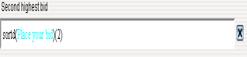
All the choices are sorted in descending order and the second element in a vector is selected.

Make sure to select  next to the variable editor in order to use the calculation in the next step within the same .


  1. Determining a variable

Create a variable with the following characteristics.

·        Type real or Integer (up to the moderator)

·        No initial value

·        Dimensions: 1x1

·        Select so each subject receives information about her own profit.

3.                                                                              In the window,  insert Profit from the drop down menu and then write the following expression:

Note that a subject with the highest bid wins and for profit calculation the Second highest bid is subtracted from the valuation.

Right click on the example of the second price sealed bid auction to download and use it

 with the Comlabgames program.


C. Changes in the English auction design


1.                                     added


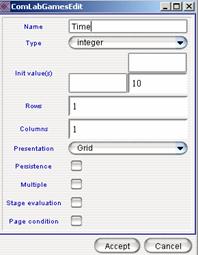
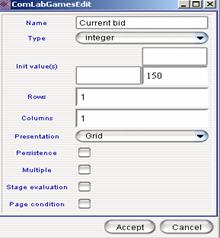
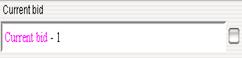
  1. Variable shows the value of the current bid. It is inserted into the in order for bidders to observe the highest outstanding bid.
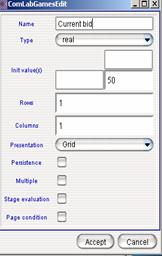
  • Initial value is set to 50 (i.e. the lower bound for the uniform distribution). This variable is updated in the  window.


  1. Variable determines the interval that allows subjects to change a bid or if the  expires, the  is updated according to the formula stated in the  window.  is inserted in under .
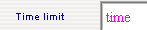
  • Initial value is set to 10 (i.e. which means that 10 seconds is the maximum duration before the is updated).


2.                                     changed


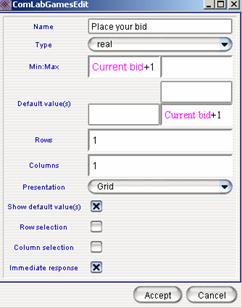
  1. Choice  has the following characteristics:


·                  Minimum value is set to Current bid + 1 which means that subjects cannot submit a bid lower than the Current bid increased by 1.

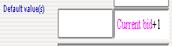
·                  The default value is set to the Current bid + 1 which means that the is automatically updated with Current bid + 1, and subjects can click return to submit the displayed value. Subjects can still change the displayed value.

·                  should be selected in order for subjects to see the value.


3.                                     update and stage transition changes that follows


a. Changes in

b. Changes in

·                    From  select bidding window stage.


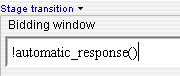
·                    Once Bidding window stage is inserted write the condition (use “Function editor” with “right mouse click” to access the functions:

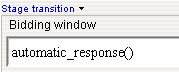
The condition “!automatic_response()” means that if a subject submits a response then the program return to otherwise it goes to if  was selected for the stage. 

“!” = not

automatic_response() = program responds not a subject.

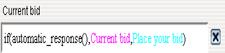
·  From  select Current bid and write the condition:

which means if automatic_response() is true then Current bid is existing Current bid, and if automatic_response() is false than Current bid value is replaced with the value of Place your bid.

Make sure to select so the result of the calculation can be used in the follow up calculation for Profit.


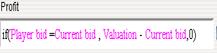
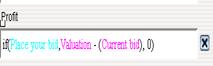
·  Profit is stated as:


Only a subject who has her bid equal to the current bid receives the profit.


4. Changes in the


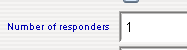
a.                  State number of responders


·                    At the bottom of each stage there are two conditions: Number of responses and Time limit. By default they are empty.

·                    Number of responders means the necessary number of subjects that have to make a decision in order to move to the next phase. This can be a number or a variable.

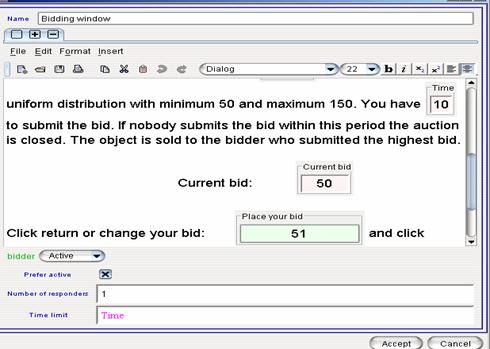
·                    In the example below the number is 1: Only one bidder is needed to submit a bid in order for the game to move to the next phase.


b.                  State the time limit


·                                           Write the upper limit for the expiration of the . This can be a number or a variable. 

·                                           When time limit is selected subjects see at the bottom page how much time is left for a decision to be made.

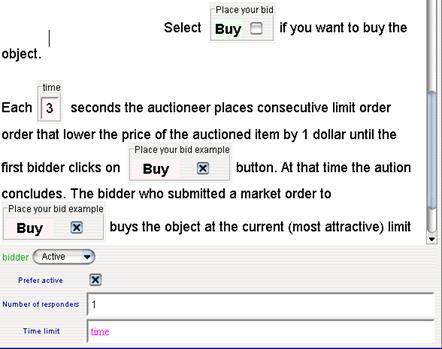
·                                           Time limit in our case was defined with the variable . It is convenient to change the value only by opening a variable and the value gets updated wherever the variable appears in the game. Note in the Bidding window (figure below) that  was inserted as a variable into the text.

·                                           The default value was 10.


Right click on the example of an English auction to download and use it with the

Comlabgames program.


D. Changes in the Dutch auction design


1.                                                             added or altered.


a.                  Variable  initial value is set to the upper limit of the uniform distribution.

b.                  Variable  

·                                      Type is Boolean given that the choice “Place your bid” is defined as Boolean. This variable is used in results to show subject’s decision.

·                                      Variable is


c. Variable  is introduced because it differs from the . Current bid is updated after each stage, a (see variable update).  has .

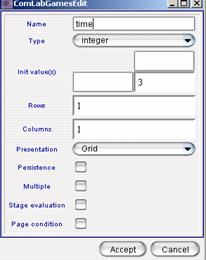
d. variable is needed to tell subjects when auctioneer (the program) updates the price. The initial value is set to 3. It means that a stage lasts 3 seconds.


2.   changed.


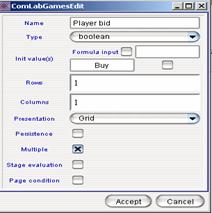
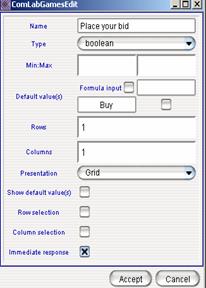
  1. Create a choice   with the following characteristics:


  • Change  to a boolean.  This option means that a subject just clicks with the mouse on the choice to indicate that she is willing to buy a product.
  • Label the choice . When  is inserted into the the label shows on the client side as follows: .
  • Select  so subjects do not need to click return after they typed a number. If  is not selected then subjects have to click on “Continue” at the bottom of the page to submit their decision.


4.                                     update and stage transition changes that follows


a. Changes in

b. Changes in

·                    From  select bidding window stage.


·                    Once Bidding window stage is inserted write the condition (use “Function editor” with “right mouse click” to access the functions:

The condition “automatic_response()” means that if a subject does not submit a response then the program return to otherwise it goes to if  was selected for the stage. 

automatic_response() = program responds not a subject.

·  From  select Current bid and write the condition:

Make sure to select   because Current bid is used in the follow up calculation for Profit.


·  Profit is stated as:


Only a subject who accepted the bid is the one who gets the profit.


4. Changes in the


c.                  State number of responders


·                    At the bottom of each stage there are two conditions: Number of responses and Time limit. By default they are empty.

·                    Number of responders means the necessary number of subjects that have to make a decision in order to move to the next phase. This can be a number or a variable.

·                    In the example below the number is 1: Only one bidder is needed to submit a bid in order for the game to move to the next phase.


d.                  State the time limit


·                                           Write the upper limit for the expiration of the . This can be a number or a variable. 

·                                           When time limit is selected subjects see at the bottom page how much time is left for a decision to be made.

·                                           Time limit in our case was defined with the variable . It is convenient to change the value only by opening a variable and the value gets updated wherever the variable appears in the game. Note in the Bidding window (figure below) that  was inserted as a variable into the text.

·                                           The default value was 10.


Right click on the example of the Dutch auction to download and use it with the

Comlabgames program.


III.             COMMON VALUE AUCTIONS


1.       added

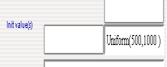
a.       Variable  represents the true value of the objects. The characteristics of the common value are:


·   Initial value is set to the draw from the distribution


·   is NOT SELECTED. This means that only one value will be drawn and it will be the same for all subjects.


b. Variable calculates the deviation for each subject, and it draws a different value for each subject.
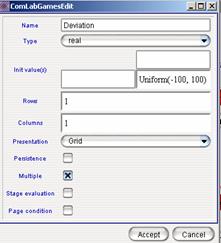


·   Initial value is set to the draw from the distribution


·   is SELECTED. This means that a different deviation is drawn for each subject.


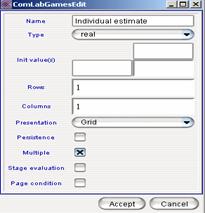
b.      Variable  gives each subject a different estimate of a common value. Operationally is the sum of  and . The characteristics of  are:


·   is SELECTED. This means that a different estimate is given to each subject.

How is calculated: See the changes in variable update


2.                                           update in


a.                   calculation

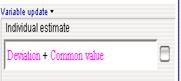
·                                            Individual estimate has to be calculated before it is shown in the  (i.e. in the transition between the instructions and bidding window:


·                                            The calculation for the Individual estimate in the variable update is:


b.           calculation


·                          is updated in the transition AFTER the (i.e. )

·                          Profit is Common value Place your Bid for the winning bidder, otherwise is zero.


Right click on the example of the Price sealed bid common value auction to download

and use it with the Comlabgames program.


IV.              ASYMMETRIC VALUATION PRIVATE VALUE AUCTION

General description of asymmetric valuation first price private value auction


·        Instead of assuming all bidders appear the same to the seller and to each other, suppose that bidders fall into two recognizably different classes.


·        Instead of there being a single distribution F(v) from which the bidders draw their valuations, there are two cumulative distributions, F(v) and F(v) with probability p  and p respectively. Thus F(v) = pF(v) + pF(v).


1.                                     added


a.                  Drag and drop  into a design window.

b.                  Rename the  to .

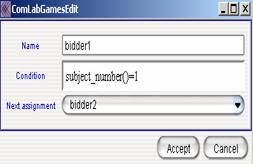
c.                   Open  window.


d.                  Write a condition which is Boolean type. Right mouse click to access Function editor for functions.


·                    Condition: subject_number()=1 means that a first subject who login to the game gets assigned a role of bidder 1.

·                    Select bidder2 as a next assignment to go to (i.e. if the fist condition is false then go to the next assignment).


·                    The result is the link between  and :

·                    Select a bidder and click on  to determine where the program starts checking the conditions.

·                    Condition for  is empty. It means that everybody else who logins after the first subject are assigned to be  .


2.                                           added

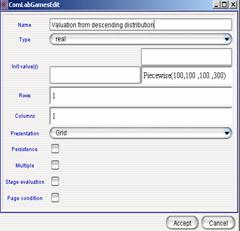
a.                  Create variable


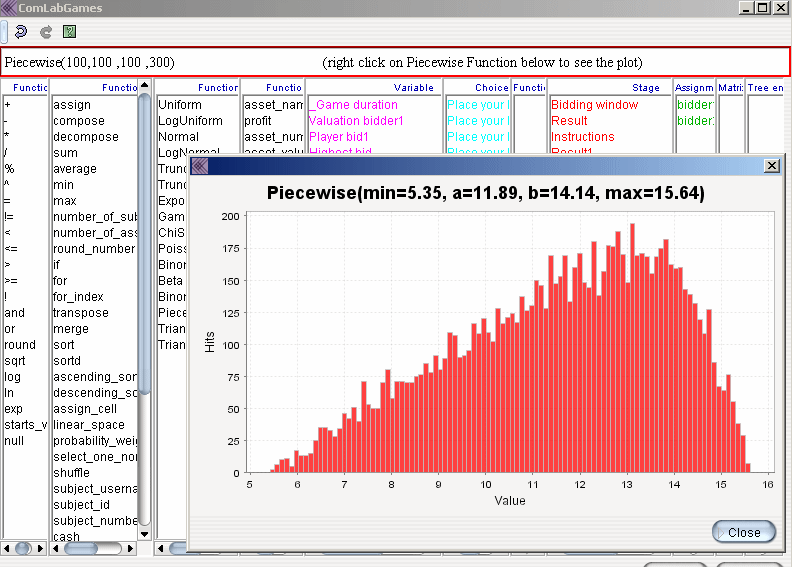
·                                            Initial value is drawn from Piecewise cumulative distribution with parameters: [Min, a, b, Max]

·                                            Set Min=a=b for descending cumulative distribution:


Piecewise(100,100,100,300)

(“right mouse click  to access Function editor with all the functions)


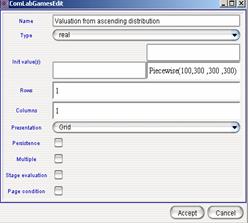
b.                  Create variable

·                     Set a=b=Max for descending cumulative distribution:


Piecewise(100,300,300,300)


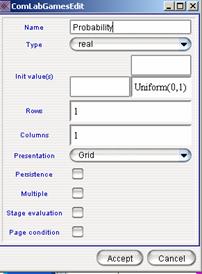
c.                   Create variable


·                    Initial value is Uniform(0,1)

 will be used to determine which distribution is selected (i.e. descending or ascending. See Variable update


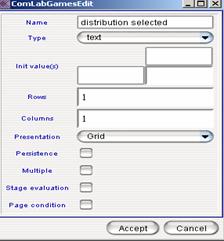
d.                  Create variable  to inform subjects which distribution was selected:


·                    Select


e.                   Create variables  and . Each of them have the same characteristics:
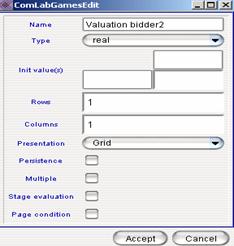
 

Depending on a draw from  one bidder will be given ascending distribution and the other bidder will be given descending distribution. (See Variable update)


f.                    Create variables  and  to inform bidders which distribution they were given

·                    Select


 update in the window


a.                   between


b.                   


IV. VIEWVING EXPERIMENTAL RESULTS


  1. The output file is automatically created when a moderator clicks on . The file name has always the following form:

 

-         start with the log, date, time when the session started and the name of the file. This enables moderator to know exactly when the same game was played on different occasions.


  1. To open the file and view the results click on the Comlabgames Log Browser-Free icon  that is on your desktop and it was downloaded from the Comlabgames web page.
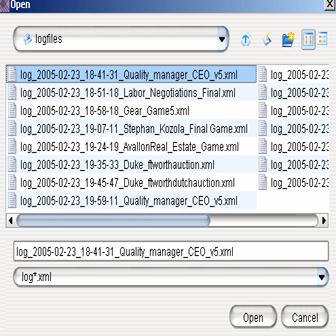
  2. Open the file that you want to look by clicking on  and selecting the appropriate file:

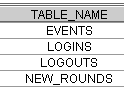
  1. Data is organized in tables. The log file consists of tables and once you open the output file the names of all the tables are automatically listed.

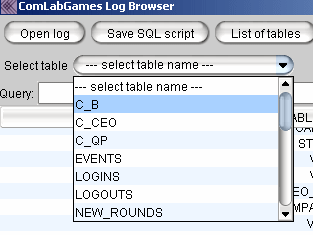
  1. Click on  to see the list of tables (i.e. variables, choices) that are created (see the in the figure above.)
  2.  allows you to select a choice/variable and list the data related to this specific table.


  1.   can be used to organize and display the data. SQL commands can be used to filter the data in certain way.


Each  created in the design window represents a separate table. All choices start with capital C_ and continue with the name of the choice created in the program. For example table  represents a choice  that you see on the design window when you open a game file.


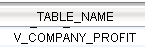
  1.    Each variable created in the design window is also presented in a separate table. All variables start with capital V_ and continue with the name of the variable created in the program. For example table  represents a variable  that you see on the design window when you open a file with which you will run an experiment.
  2. g tables:     have designated name are always created as a part of output with LogBrowser.


·        Table “Events” has all the data recorded but the data are appended by rows not merged by columns. Events table lists all events during the experiment. 

·        “Logins” capture all the successful logins to the program by user name. Similarly for logouts.

·        “New_rounds” contains the data about the new round.


  1. The amount of information from the experiment is determined by the moderator. It is up to the moderator to decide which kind of variables he/she wants to create (even if those variables are not displayed to subjects) in order to find them in the log file.


1.                                                                                    Selecting the data with

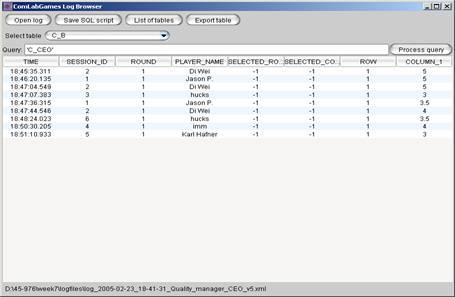
a.   enables presentation of the data for the selected table by clicking on the table name. Click on the drop down arrow next to  and all the names of the tables that are contained in the file are listed. Click on the name of the table to view it.

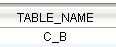
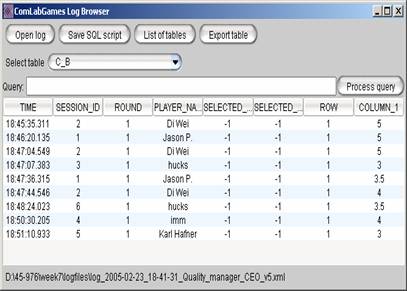
In our example the choice C_B was selected  from .


After selecting table C_B the following information about choice  appears automatically in the LogBrowser:


  1. Saving the selected table in ASCII format

First select a table:

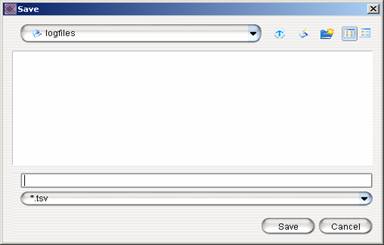
Click on  to export the information about the table .


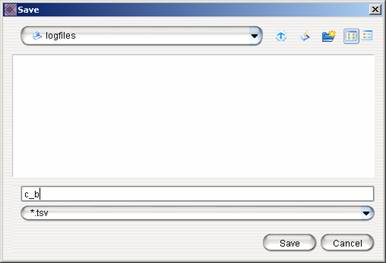
 The program prompts you to save a file with *tsv extension.


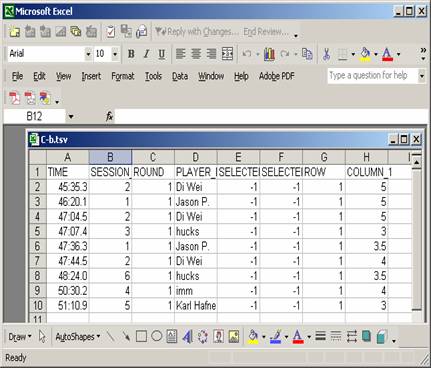
When you go to Excel file, open all files and this particular file will be called:

C_b.tsv. This files are “ASCII” files.


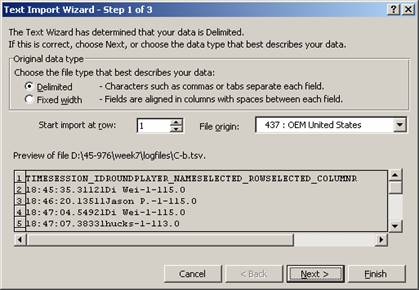
2. Opening a created ASCII log file with Excel

  1. Open file with EXCEL and the following message appears (leave “Delimted”):


  1. Click Next and the following windows appear:


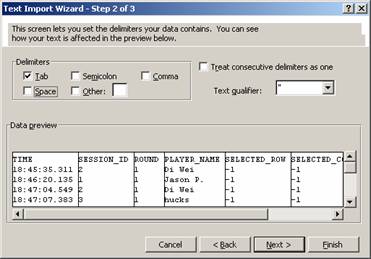
  1. Leave “Tab” delimiters and click Next and then Finish and the table is imported into Excel: